The /apps page of an iiziServer lists the applications it serves. For each application it has one Launch link for iiziRun Developer and one for iiziRun Custom. The link adds the application to that iiziRun if it is not in its list yet, and launches it. The same link works three ways: tapped on a phone or tablet, scanned as a QR code with the phone's camera, or scanned from inside iiziRun.
Update iiziRun to 5.0.2 or later. The scanning described below needs iiziRun Developer or iiziRun Custom 5.0.2 or later, on Android and on iOS, from Google Play or the App Store. The server part is in iiziServer 5.0 and in the IIZI Development Server of iiziGo 5.0.
On the iiziServer: the /apps page
Open the server's /apps page in a Browser, for example https://your-server/apps, or press Open Apps on the server's home page. The columns iiziRun Devel and iiziRun Custom hold a Launch link per application. What a click or a tap does depends on the device the page is open on:
| The page is open on | Launch does |
|---|---|
| An Android phone or tablet | Opens the application in iiziRun. When that iiziRun is not installed, the page goes to its Google Play page after about two seconds. |
| An iPhone, an iPad or an Apple Vision Pro | Opens the application in iiziRun. When that iiziRun is not installed, the page goes to its App Store page after about two seconds. An iPad whose Safari presents itself as a Mac is recognized as an iPad. |
| A computer: Windows, Linux or a Mac | Shows a window with the QR code of the link, the link as text, and QR codes of the iiziRun's App Store and Google Play pages, for a phone that does not have it yet. |
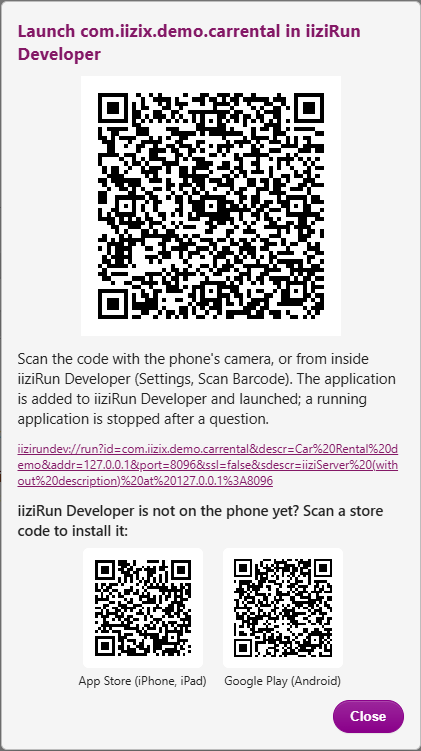
- One code for Android and iOS. The QR code holds the launch link itself:
iizirundev://run?...for iiziRun Developer,iizirun://run?...for iiziRun Custom. The phone's camera opens it on an iPhone and on Android (checked on a Google Pixel), and so does the scanner inside iiziRun. - The link names the server as the page was opened. The phone connects to the address and port in the address bar of the page. Open
/appsby an address the phone can reach, not bylocalhost. - Sign-in happens in the application. The launch is anonymous, as every launch in 5.0; the application signs its users in itself.
- Both the production server's and the development server's
/appspage have the links. A Customized iiziRun of your own is not offered there. - The store pages: iiziRun Developer on the App Store and Google Play; iiziRun Custom on the App Store and Google Play.
In iiziGo
The development server
The IIZI Development Server that iiziGo starts (its Run configuration “IIZI Development Server”) has the same /apps page, with the same Launch links, so you can try an application on a phone while you develop it:
- Start the IIZI Development Server from iiziGo.
- On the computer, open its
/appspage by the computer's network address, for examplehttp://192.168.1.20:8080/appswith the port of your server configuration. - Press Launch in the iiziRun Devel column.
- Scan the QR code with the phone's camera, or from inside iiziRun Developer (see below).
The phone must be on a network that reaches the computer's address and port.
Cast to Device
For the panel you are designing, the Panel Editor's Cast to Device drop-down has Show QR code for iiziRun Developer: a window with the computer's addresses and one QR code for the address chosen. Scanned in iiziRun Developer, it opens Cast to Device of this iiziGo. The Launch link starts the running application; Cast to Device shows the panels of the Designer.
Your application's panels
IIZI 5.0 has no component or property that shows a QR code in an application's panels, and no function that lets an application scan one: scanning is done by iiziRun Developer and iiziRun Custom themselves, as described on this page.
In iiziRun Developer
- Update iiziRun Developer to 5.0.2 or later.
- Scan the Launch QR code with the phone's camera and open the link, or open iiziRun Developer, go to Settings and tap Scan Barcode under Operations, and scan the code.
- iiziRun Developer adds the application to its list if it is not there yet, and launches it.
- When another application is running, iiziRun Developer asks first: “The application A is running. Stop it and launch B in iiziRun Developer instead?” OK stops it and launches the new one; Cancel keeps it running. A link of the application already running asks nothing.
- The same scanner takes a server's QR code and iiziGo's Cast to Device code. It is also on Select Server, Select iiziGo and Open Panel, as Scan QR code.
- A code meant for iiziRun Custom is not opened: iiziRun Developer says “This QR code is a link for the Custom launcher, not for iiziRun Developer.” Any other code is shown as text, with its format.
In iiziRun Custom
- Update iiziRun Custom to 5.0.2 or later.
- Scan the Launch QR code with the phone's camera and open the link, or open iiziRun Custom and tap Scan QR code on its Home page, right below Add Application..., and scan the code.
- iiziRun Custom adds the application to its list if it is not there yet, and launches it.
- When another application is running, iiziRun Custom asks first: “The application A is running. Stop it and launch B in iiziRun Custom instead?” OK stops it and launches the new one; Cancel keeps it running.
- The Home page's Scan QR code also takes a server's QR code, as the one on Select Server does.
- A code meant for iiziRun Developer is not opened: iiziRun Custom says “This QR code is a link for the Developer launcher, not for iiziRun Custom.” Any other code is shown as text, with its format.